



Download and install the MyLMU Sync Agent on Windows or Linux from the dashboard.
Download
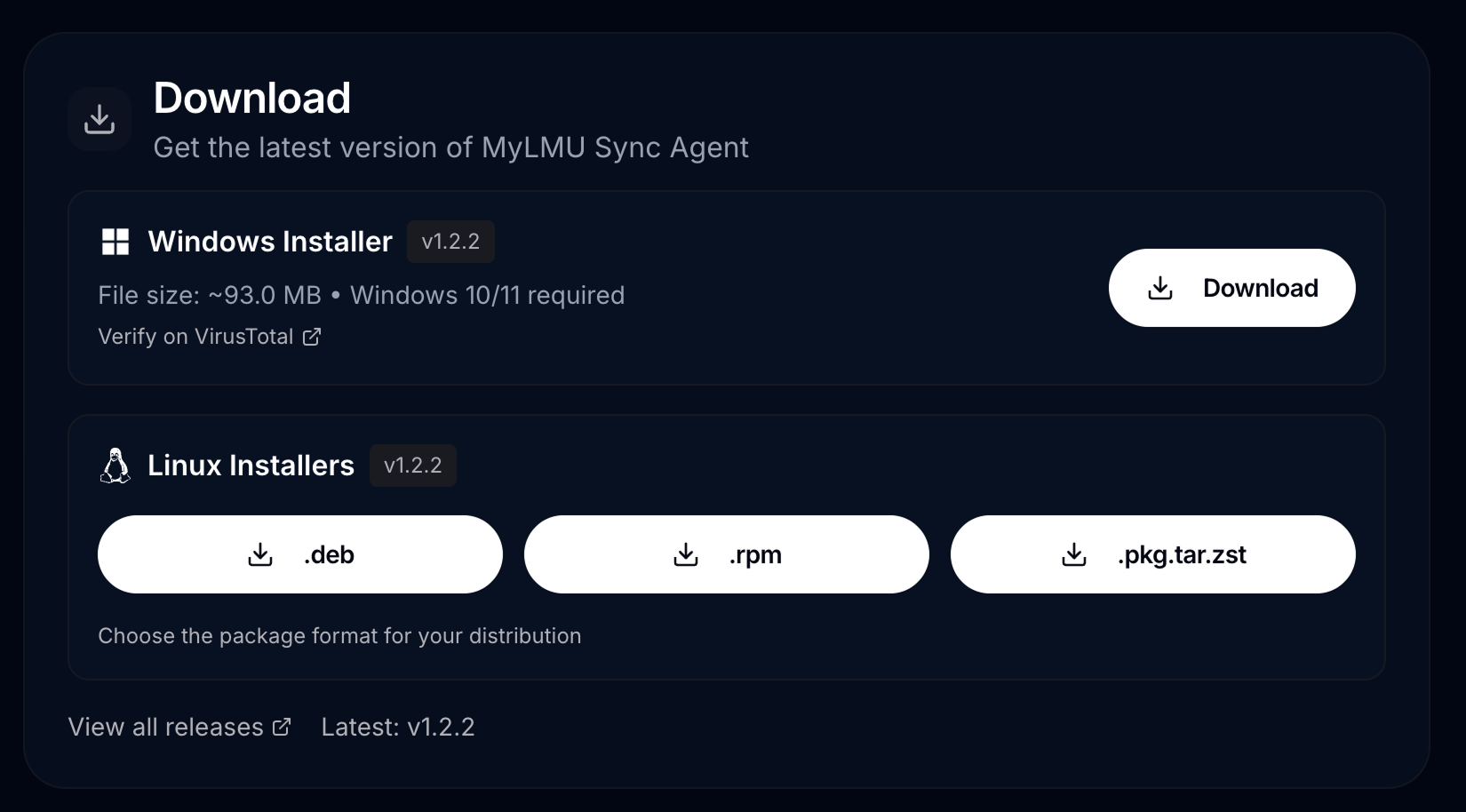
- Sign in to MyLMU
- Go to Dashboard → Sync Agent
- Download the installer for your platform
The page shows the latest version and file size (typically ~95 MB). All releases are also on GitHub.
Windows
- Click Download for the Windows installer (
.exe) - Run the downloaded file
- If Windows SmartScreen appears ("Windows protected your PC"):
- Click More info
- Click Run anyway
- This warning is expected for unsigned software — it does not mean the installer is malicious
- Optional: Verify the installer on VirusTotal for independent antivirus scan results
- If no report exists yet, VirusTotal may prompt you to analyze the file — use the Verify on VirusTotal link on Dashboard → Sync Agent after downloading
- Follow the setup wizard
- Launch from the Start Menu or Desktop shortcut
Requirements: Windows 10 or 11
Linux
Choose the package for your distribution:
| Package | Distro |
|---|---|
.deb | Ubuntu, Debian |
.rpm | Fedora, RHEL |
.pkg.tar.zst | Arch Linux |
- Download the appropriate package
- Open a terminal in the download folder
- Install with your package manager:
# Debian/Ubuntu
sudo dpkg -i mylmu-sync-agent_*.deb

# Fedora/RHEL
sudo rpm -i mylmu-sync-agent_*.rpm

# Arch
sudo pacman -U mylmu-sync-agent_*.pkg.tar.zst
- Launch from your application menu
If using an AppImage, ensure the file has execute permissions.
After installation
The app window opens on first launch. Continue with First-time setup to connect your account.