

MyLMU Logo
Documentation
Sign inGet Started
DocsMyLMU Sync Agent
Getting Started
Product Overview
MyLMU App
MyLMU Telemetry
MyLMU Coach (AI)
MyLMU Sync Agent
Sessions
Getting Started
Session History
Session Details
Import
Sync Agent
Analytics
Milestones
MyLMU Telemetry
Getting Started
File Library
Telemetry Viewer
Leaderboard
Teams
Plans & Limits
AI Coach
Troubleshooting
MyLMU Sync Agent
Getting Started
Sessions Sync
Telemetry Sync
Daily Usage
Troubleshooting
Privacy & Security
MyLMU Coach (AI)
Getting Started
Coaching Modes
Coach Features
Troubleshooting
Privacy & Terms
Teams
Getting Started
Team Dashboard
Sharing with Your Team
Discord & Alerts
Team Calendar
Profile
Plans & Limits
Rankings
Getting Started
Skill & Discipline
Placement & Tiers
Community Leaderboard
Driver Profiles
Sessions & Imports
Notifications
Plans & Limits
Troubleshooting
Community
Getting Started
Activity
Leaderboards
Friends
Friend Groups
Lap Records
Track & Car Stats
Weekly Meta
Overall Community Stats
Feature Requests
Privacy
Troubleshooting
Misc
Opening Settings
Account & Data Lifecycle
Profile
Notifications
Appearance
Feedback
Using the Documentation
DocsMyLMU Sync Agent

MyLMU Sync Agent

Install the desktop Sync Agent, connect your account, and auto-upload sessions and telemetry. Official MyLMU guide.

Last updated July 11, 2026

Summarize this section with AI

The MyLMU Sync Agent is a desktop app for Windows and Linux that watches your Le Mans Ultimate UserData folders and uploads new files to your account in the background — no manual file selection required.
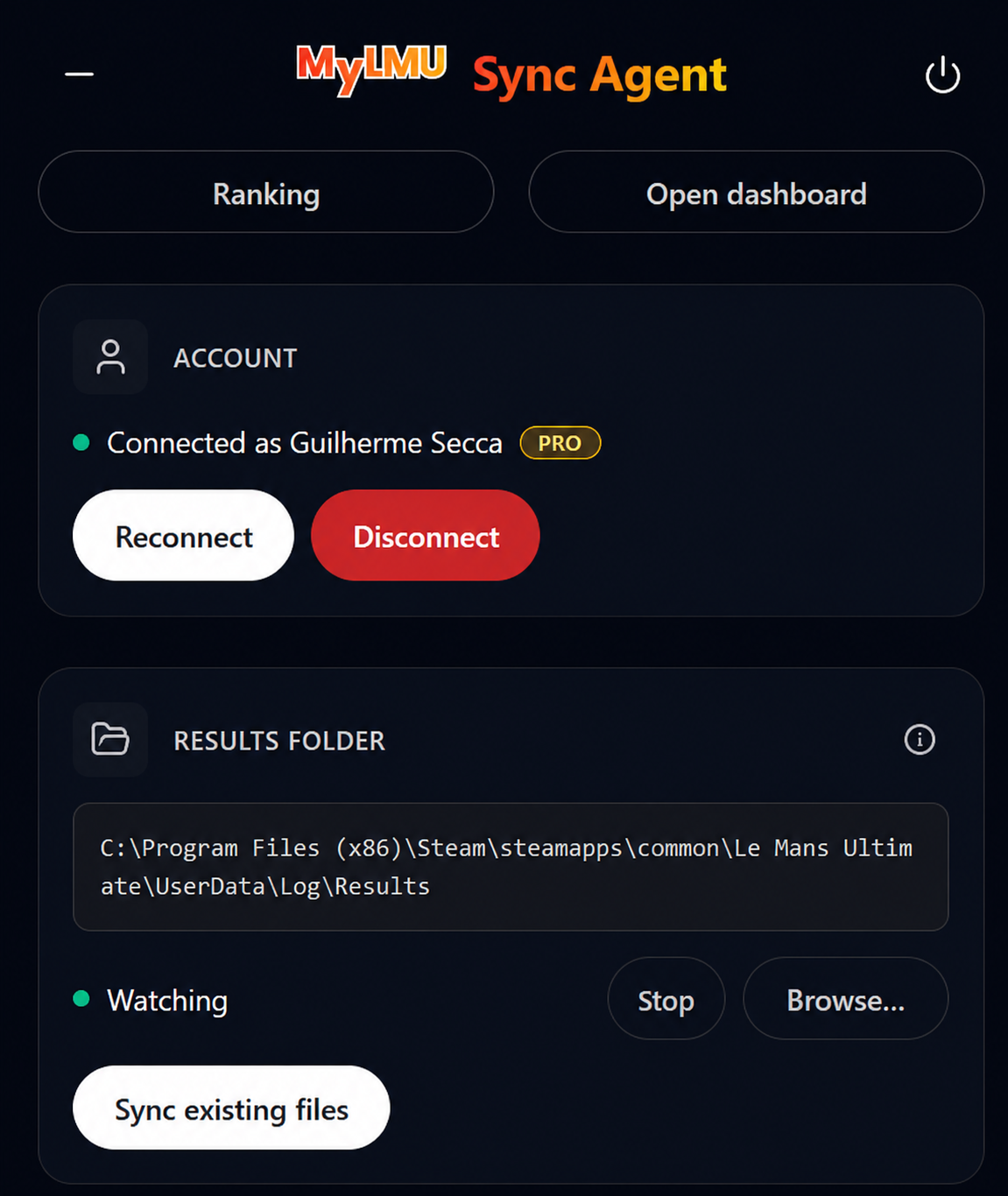
MyLMU Sync Agent — connected, folder monitoring, and activity log

What it uploads

FolderFormatDestinationPlan
UserData/Log/Results/.xml session resultsSessionsFree + Pro
UserData/Telemetry/.duckdb recordingsTelemetryPro only

Core workflow

  1. Download and install the Sync Agent (Installation)
  2. Connect your MyLMU account via OAuth (First-time setup)
  3. Select folders to monitor — Results and optionally Telemetry
  4. Race in LMU — new files upload automatically
  5. Check the Activity Log for status

Key features

  • Automatic file watching — detects new session XML and telemetry files
  • OAuth authentication — secure browser sign-in, no password stored in the app
  • System tray — runs in the background while you race
  • Auto-start — optional launch with Windows/Linux
  • Auto-updates — checks GitHub for new releases; Check for Updates in the tray menu

Documentation sections

SectionTopics
Getting StartedOverview, installation, first-time setup
Sessions SyncAutomatic session result XML uploads
Telemetry SyncAutomatic .duckdb uploads (Pro)
Daily UsageSystem tray, activity log, auto-start, updates
TroubleshootingInstallation, auth, uploads, folder paths
Privacy & SecurityData handling, folder access, encryption

Download

Get the latest version from Dashboard → Sync Agent or GitHub Releases.

Get help

  • Contact support with your OS, app version, and Activity Log errors
  • Changelog — recent Sync Agent updates

Related

  • Sessions: Import — manual XML upload alternative
  • Telemetry: Uploading files — manual telemetry upload

Was this page helpful?

PreviousLarge File PerformanceNextGetting Started

On this page

  • What it uploads
  • Core workflow
  • Key features
  • Documentation sections
  • Download
  • Get help
  • Related

Was this page helpful?

Documentation

  • Getting started
  • Product overview
  • Sessions
  • MyLMU Telemetry
  • MyLMU Sync Agent
  • MyLMU Coach (AI)
  • Teams
  • Rankings
  • Community
  • Misc

Product

  • Open dashboard
  • Sync Agent
  • Contact
  • Pricing
  • Changelog
  • FAQs
  • Branding

Community

  • Instagram
  • Community forum
  • YouTube
  • X

© 2026 MyLMU

•Privacy Policy•Terms of Service•Cookie Policy