



Configure the Sync Agent to watch UserData/Telemetry for .duckdb recordings.
Folder path
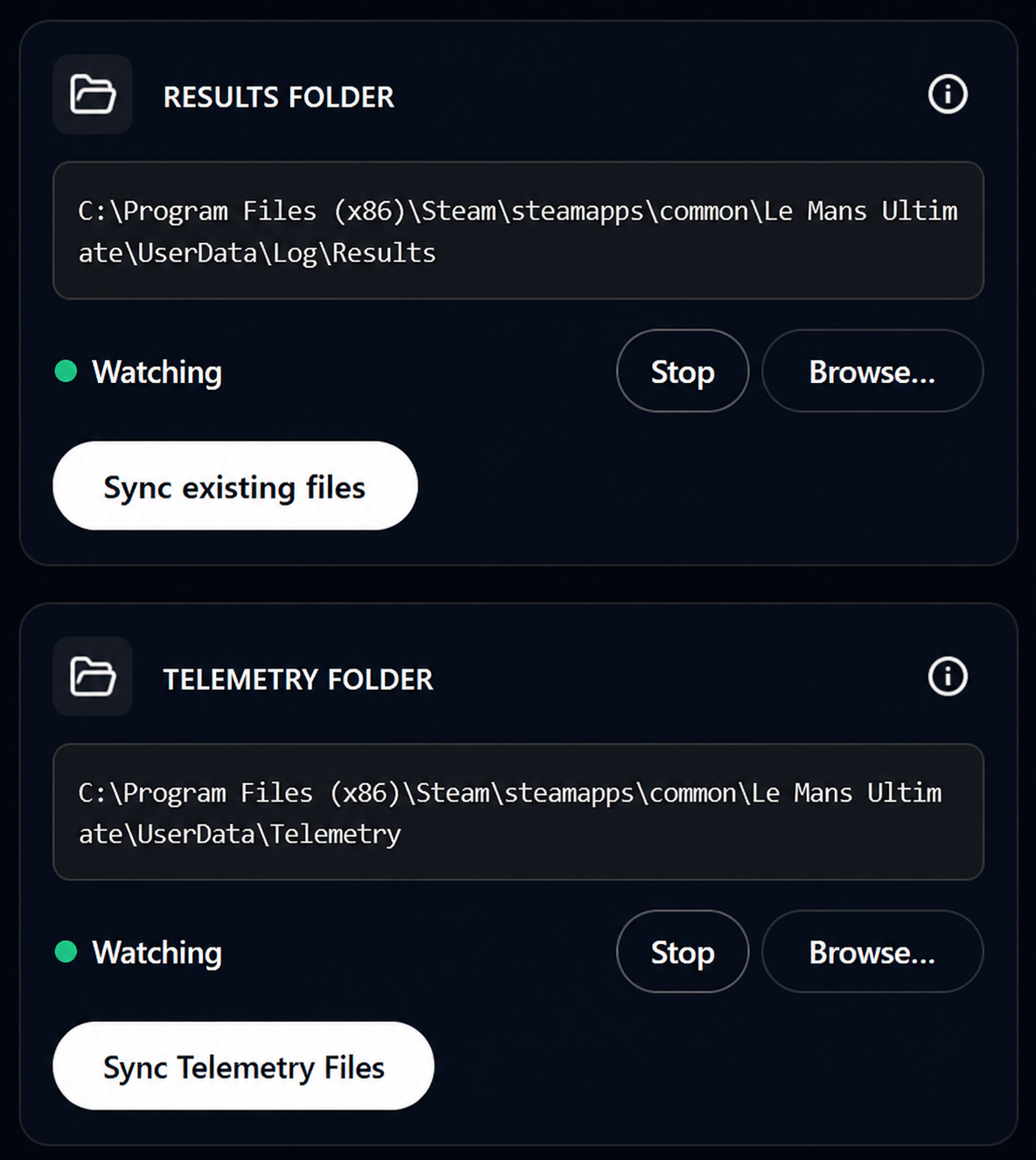
Telemetry recordings are saved to:
Le Mans Ultimate/UserData/Telemetry/
On Windows this is typically under your Steam library path for Le Mans Ultimate. On Linux with Proton, the path mirrors the Windows structure inside the Proton prefix.
Setup steps
- Confirm you have Pro — see Pro requirements
- Enable telemetry recording in LMU (Recording guide)
- In the Sync Agent, configure the Telemetry folder (separate from Results)
- Navigate to
UserData/Telemetry/inside your LMU installation - Confirm the selection
Verify recording works
- Run a session in LMU with Auto Record enabled
- Check that a
.duckdbfile appears in the Telemetry folder - The Sync Agent should detect and upload it
- The file appears in Dashboard → Telemetry → Your files
Upload flow
- LMU saves a new
.duckdbfile after a recorded session - The Sync Agent detects it
- File uploads via signed URL to secure storage
- Background processing extracts metadata (car, track, best lap, session type)
- File is added to your telemetry library
Large files may take longer to upload and process. Check the Activity Log for progress.
Linking to sessions
After upload, link telemetry to a race session for unified analysis.