



How the Sync Agent detects, validates, and uploads session result XML files.
Detection
- You finish a session in Le Mans Ultimate
- LMU writes a new
.xmlfile to the Results folder - The Sync Agent detects the new file via folder watching
- The file is queued for upload
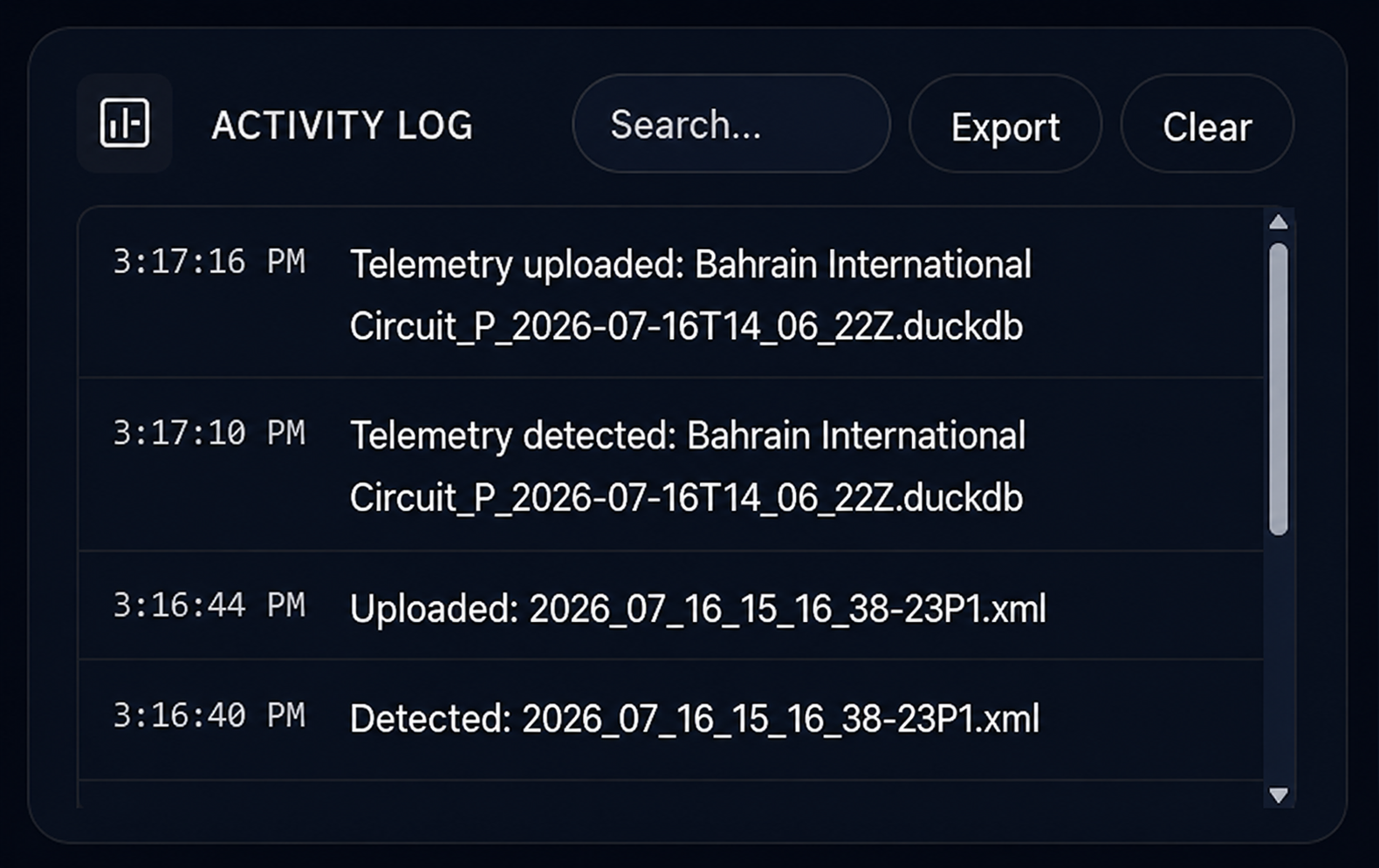
The Activity Log shows detection timestamps and file names.
Upload process
| Step | What happens |
|---|---|
| Validate | Checks file extension, size (max 50 MB), and XML structure |
| Driver match | Matches driver name in XML to your Settings profile |
| Duplicate check | Skips sessions already in your history |
| Upload | Sends file securely to MyLMU servers |
| Parse | Extracts standings, laps, and metadata |
| Store | Adds session to your history |
Skipped files are logged in the Activity Log with a reason (duplicate, no matching driver, invalid format).
Driver name matching
Your Driver Name in Settings must exactly match the name in the XML file (case-sensitive). Files with no matching driver are skipped.
If you changed your in-game name, temporarily update Settings to match older XML files. See Driver matching.
Duplicate detection
A file is skipped as a duplicate when an existing session matches on track, car, session type, date, and finish position — same rules as manual import.
Sync existing files
Use Sync Existing Files to upload your backlog:
- The agent scans the Results folder
- Compares against already-imported sessions
- Lists only new files
- Uploads selected or all files in batches (up to 500 per batch)
Rate limits
The Sync Agent uses generous upload rate limits designed for background syncing. If you hit a limit, wait a moment and the agent retries automatically.
Notifications
You may receive an in-app notification when session imports complete. Check Dashboard → Home for recent activity.