



The Activity Log is your primary tool for verifying that uploads are working.
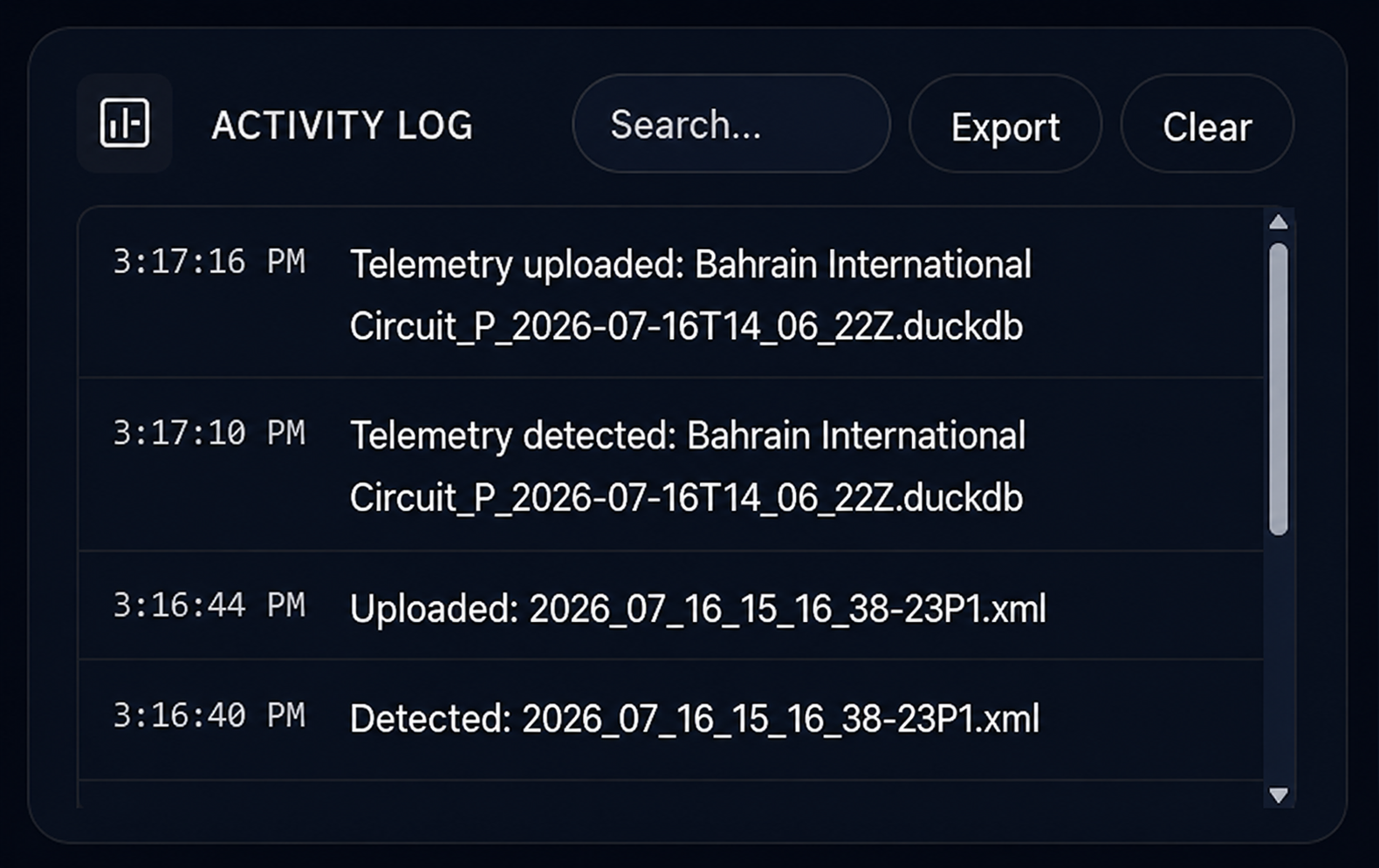
What it shows
- Detected files — new files found in watched folders
- Upload status — in progress, completed, or failed
- Skipped files — duplicates or no matching driver
- Errors — with reason (auth failure, invalid file, rate limit, etc.)
- Timestamps — when each action occurred
Scroll to see full history.
Reading the log
| Status | Meaning |
|---|---|
| Uploaded | File successfully sent to MyLMU |
| Skipped (duplicate) | Session already in your history |
| Skipped (no matching driver) | Driver name in file doesn't match Settings |
| Failed | Upload error — see message for details |
When to check
- After your first setup — confirm backlog sync completed
- After a session — verify new sessions and telemetry uploaded
- When something seems missing in your dashboard
- Before contacting support — copy relevant log entries
Monitoring indicator
The log works alongside the monitoring status indicator:
- Green = watching folders
- Red = not watching — check folder path and connection