



Load another driver's public best lap as a ghost directly from the MyLMU community. Use it to compare your line, sector times, and inputs against a fast public lap on the same track.
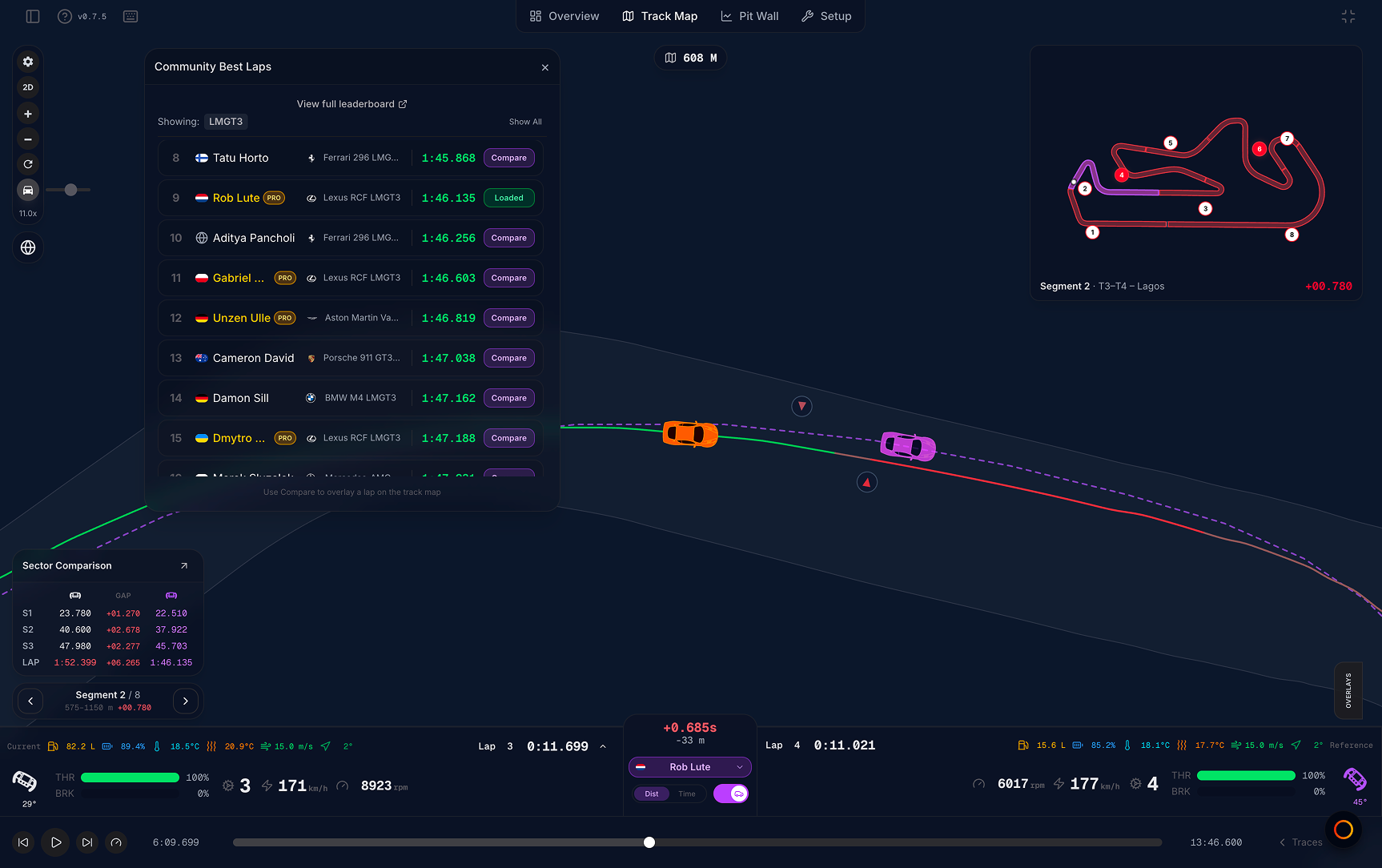
Open the picker
Two ways to open Community Best Laps:
| Entry point | Where |
|---|---|
| Community best | Driver strip center pillar Add reference menu, or traces reference menu |
| Globe button | Top-left map toolbar — hover label Community Best Laps |
The globe button appears when the file has a known track and at least one valid lap.
Using the modal
- Browse the ranked list for the current track
- Use Show All Classes to widen or narrow the car class filter
- Click Load on a row to set that lap as your reference ghost
What each row shows
| Column | Content |
|---|---|
| Rank | Position in the modal list (gold/silver/bronze styling for top three) |
| Driver | Name, flag, profile level, social links when available |
| Car | Car name and class (desktop) |
| Time | Best lap time |
| Load | Loads the lap; shows Loaded when active; spinner while fetching |
View full leaderboard
At the top of the modal, View full leaderboard opens Dashboard → Telemetry → Leaderboard with the current track (and car class) already applied. Use it when you want the full ranked table, podium, and extra filters — session type, weather, time period, and more — instead of the compact modal list.
You can load a ghost from the modal and still open the full leaderboard in another tab to browse more laps.
After you load
| What updates | Details |
|---|---|
| Map | Dashed community racing line; ghost car in 3D |
| Driver strip / traces | Reference card shows community driver name (purple wheel accent) |
| Delta | Live comparison in driver strip and Delta trace |
| Sector comparison | S1/S2/S3 vs community lap |
| Segment mini map | Red/green segment tints vs reference |
| Daily view counter | Counts once per unique lap per UTC day |
Clear reference in the driver strip or traces menu removes the ghost.
Daily view limit
| Plan | Limit |
|---|---|
| Free | 10 unique community laps per UTC day |
| Pro | Unlimited |
Re-opening the same lap does not count again. Limit resets at midnight UTC.
When you reach the daily limit, MyLMU prompts you to upgrade to Pro for unlimited views. See Free vs Pro.
Leaderboard connection
Laps in the modal come from the Telemetry leaderboard. Only public files with eligible driver names appear. The modal shows a quick pick list for your current track; View full leaderboard jumps to the same data with the full leaderboard UI.
vs external ghost
| Community ghost | External ghost | |
|---|---|---|
| Source | Public leaderboard | Your Your files library |
| Limit | Daily view cap on Free | None |
| Typical use | See how you compare to the fastest public laps | Compare your own sessions or private files |
Suggested workflow
- Open Community Best Laps from the globe or driver strip
- Keep your car class filter on, or Show All Classes to see outright fastest
- Load the top row and replay your best lap
- Read sector comparison, then step red segments with the segment seeker
Related
- Driver strip — reference controls
- Telemetry leaderboard
- Free vs Pro limits
- External ghost