



Open detailed real-time analysis panels from the Track Map Overlays launcher. These are live readouts at the replay playhead — pair them with the traces panel when you need the full time history.
Open overlays
On the right side of the map, just above the driver strip, click the vertical Overlays tab. A panel opens to the left with overlay categories — click one to open it on the map. Click the tab again (or the chevron) to collapse the launcher.
When the traces panel is open, the same Overlays tab sits on the right edge beside the traces stack.
Pause replay (Space) when reading precise values — numbers update continuously during playback.
Overlay launcher
Each button toggles a panel on or off. Active overlays are highlighted in the launcher.
| Button | Panel | What it shows |
|---|---|---|
| Laps | Session Laps | Lap list with sector times; seek replay by clicking a lap |
| Data | (3D only) | Live HUD cards above your car and ghost car(s) in the 3D scene |
| Corners | (3D only) | Preset orbit camera per turn |
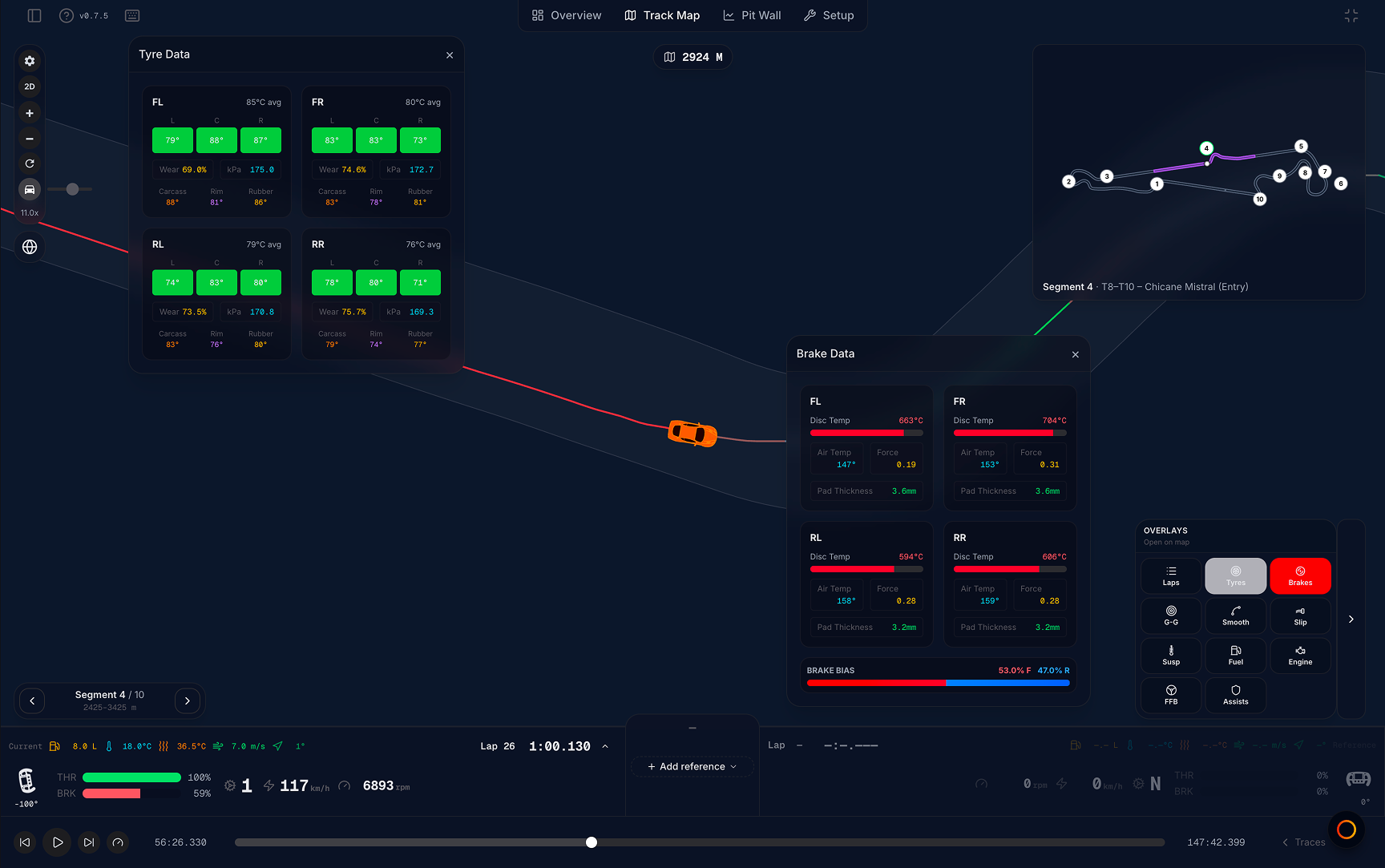
| Tyres | Tyre Data | Pressures, temps (L/C/R), wear, carcass/rim/rubber per corner |
| Brakes | Brake Data | Disc temperatures per corner |
| G-G | Traction Circle | Live lateral/longitudinal G diagram with recent trail |
| Smooth | Driver Smoothness | Throttle, brake, and steering smoothness scores |
| Slip | Wheel Slip | Slip ratio per wheel |
| Balance | Under / Oversteer | Live understeer / grip / oversteer from steer vs lateral G |
| Susp | Suspension Travel | Ride height / travel per corner with bottoming warnings |
| Aero | Aero Efficiency | L/D ratio and front/rear balance (only when aero channels are logged) |
| Fuel | Fuel | Fuel level, consumption estimate, and Virtual Energy when available |
| Engine | Engine Temperatures | Oil, water, and related engine temps |
| FFB | Force Feedback | Steering shaft torque and FFB output |
| Assists | Driving Aids | TC and ABS engagement with assist levels |
Exact channels depend on what LMU recorded in the
.duckdbfile. Panels for missing data stay empty or hidden.
Laps is hidden in leaderboard lap inspect view. Data and Corners only appear when you are in 3D replay.
What to look for (by panel)
Tyre Data
Compare corner pressures and temperatures while replay runs through a stint. Watch for overheating on one axle, pressure drift on long runs, or uneven wear left vs right.
Brake Data
Disc temps per corner — useful after heavy braking zones. If one corner runs consistently hotter, check balance or driving technique in that section.
Traction Circle (G-G)
Shows how much lateral and longitudinal grip you use. A tight trail near the limit suggests aggressive cornering; a small pattern may mean conservative inputs.
Driver Smoothness
Scores how smoothly you apply throttle, brake, and steering at the playhead. Lower scores often correlate with abrupt inputs — cross-check the matching trace chart.
Wheel Slip
Slip ratio per wheel — helpful when diagnosing wheelspin on exit or lock-ups under braking.
Under / Oversteer (Balance)
Live chassis balance at the playhead from steering vs lateral G, calibrated to this session. Understeer = less G than the fit; Grip = more G without a rear event; Oversteer needs countersteer or rear wheelspin. Grip is not a driving score. Mid-corner slides without wheelspin may only flash a Countersteer chip — see Pit Wall → Oversteer / Understeer Balance.
Suspension Travel
Ride height and travel per corner. Bottoming warnings highlight harsh kerb or curb strikes.
Aero Efficiency
Only appears when aero channels exist. L/D and front/rear balance help interpret high-speed stability — more relevant on prototypes and GT3 aero cars.
Fuel / Engine / FFB / Assists
Supporting panels for stint planning, engine health, wheel force, and how much TC/ABS intervened.
2D vs 3D overlays
Most launcher buttons open the same draggable popups in both 2D map and 3D replay — Tyres, Brakes, G-G, Smooth, Slip, Balance, Susp, Aero, Fuel, Engine, FFB, and Assists. Reposition and stack several at once. Open panels stay open when you toggle 2D/3D with M.
Shared — Laps popup
Laps opens the same Session Laps window in both modes. Click a lap to jump replay to that lap’s start.
Ghost assignment inside the popup differs by view mode (when ghost mode is Custom):
| Mode | Ghost controls |
|---|---|
| 2D | One Ghost button per lap — sets a single reference lap (yellow racing line) |
| 3D | Two numbered slots per lap — 1 (yellow primary ghost) and 2 (magenta secondary ghost) for comparing up to two reference laps in the scene |
Community, external, and other ghost sources are unchanged; see Community ghost and External ghost.
3D only — Data
Data does not open a popup. It toggles floating telemetry cards in the 3D scene above:
- Your car — driver name, gear, throttle, brake, steering wheel
- Active ghost car(s) — same HUD on each ghost
Use this when you want live inputs on the cars without opening the traces panel. In cinema mode, these HUD cards hide with the rest of the chrome.
3D only — Corners
Corners opens a turn list (T1, T2, …). Pick a corner for a preset orbit camera on that apex (full flying laps only — hidden on the out lap and on tracks without corner-camera support). Clear preset returns to chase / follow-car camera.
Not from the launcher
These map features are tied to the view mode but are not overlay buttons:
| Feature | 2D | 3D |
|---|---|---|
| Ghost car models in the scene | — | Yes (up to two in Custom ghost mode) |
| Mini-map | Top-right when traces are closed | Embedded in the 3D view when traces are open |
| Driver strip | Yes | Yes |
| Live steering wheel in driver strip / traces | Yes | Yes |
For performance, prefer 2D and close unused popups on large files — see 3D view issues.
Suggested workflow
- Scrub to a corner on the map
- Pause and open Tyres + Brake Data
- Step through the corner with ← / → on the keyboard or segment seeker
- Open Traces for throttle/brake history over time