



Compare your current lap against another telemetry file already in your Your files library — a different session, car, or stint on the same track.
This is not a desktop file import. You cannot drag a
.duckdbfrom your computer onto Track Map. The file must already be uploaded to Dashboard → Telemetry → Your files.
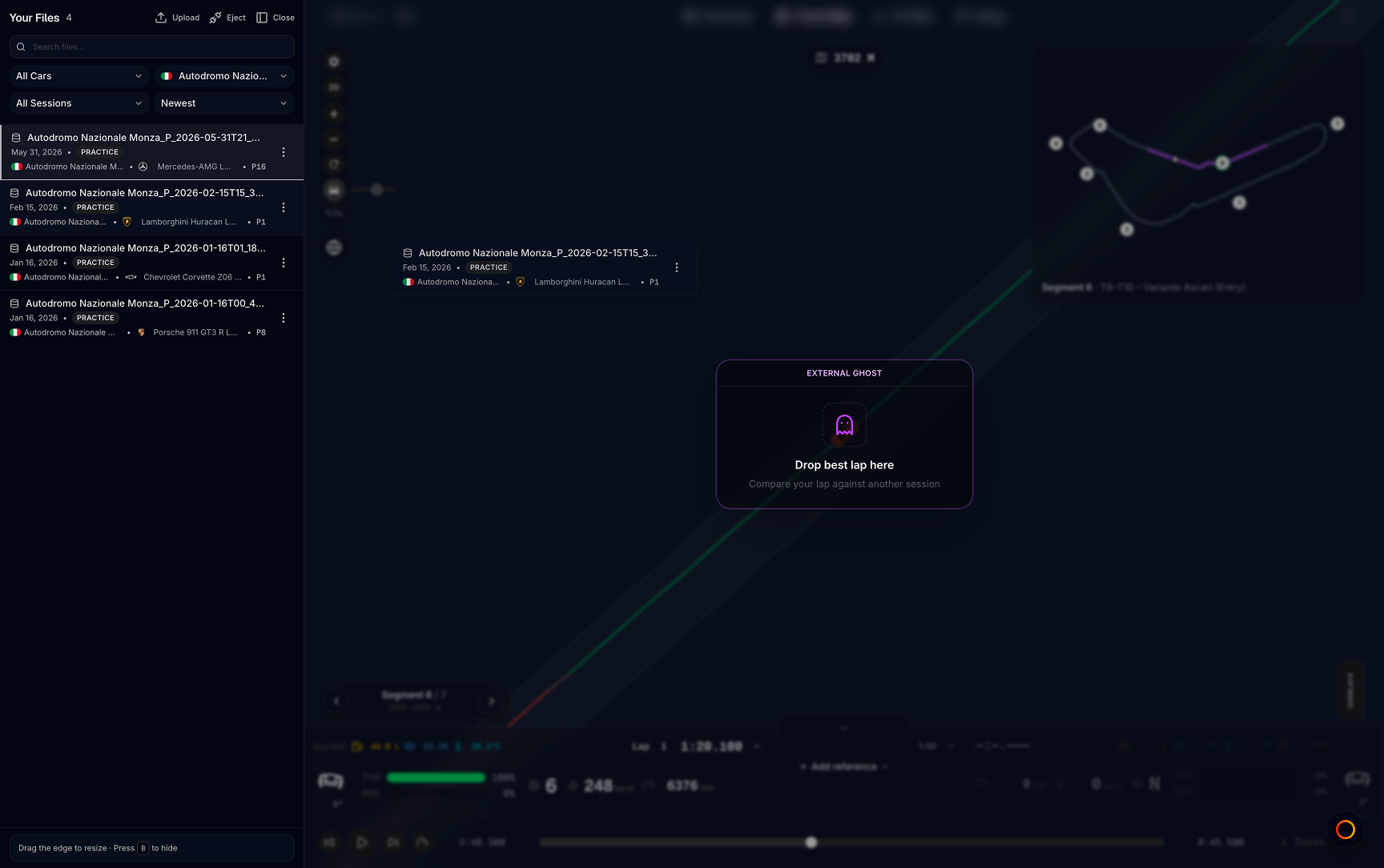
How to use
- Open a telemetry file in Track Map
- From Your files, pick another recording on the same track
- Load it as the reference ghost using either method below
Drag and drop
- Drag the file row from the Your files list
- Drop it onto the Track Map
- A Drop best lap here overlay confirms the load
Three-dots menu
- Open the ⋯ menu on a file in Your files
- Choose Load to compare
Load to compare only appears when:
- A different file is already open in the viewer
- Both files are on the same track
Same-track requirement
Both files must be from the same track. MyLMU uses the track recorded in each file, or the track from a linked session if one is attached.
If a file does not show a track yet, open it once in the viewer or link a session so MyLMU can read it. Comparing files from different tracks is not supported.
What you get after loading
| Feature | What changes |
|---|---|
| Map | Ghost racing line on 2D/3D; ghost car in 3D when visible |
| Driver strip / traces | Reference driver card with external driver name |
| Delta | Live time delta in driver strip pillar and Delta trace |
| Sector comparison | S1/S2/S3 splits vs the external best lap |
| Segment tools | Red/green segment coloring on mini map |
| Comparison markers | BRAKING, MIN SPEED, FULL THROTTLE on 2D |
Toggle Dist vs Time in the driver strip when lap distances differ slightly between files.
vs community ghost
| External ghost | Community ghost | |
|---|---|---|
| Source | Your Your files library | Public leaderboard laps |
| How to load | Drag from file list or Load to compare | Community best menu or Community Best Laps globe |
| Track | Must match open file | Filtered by track/car in picker |
| Daily limit | No limit (your own files) | Free: 10 unique laps/day UTC |
| Best for | Your old stints, different cars, private tests | Fastest public laps on the leaderboard |
Suggested workflow
- Open today’s session in Track Map
- Drag yesterday’s best stint from Your files onto the map
- Pick the lap to study in the driver strip; external file’s best lap is the default reference
- Use segment seeker on corners where delta goes red
Related
- Traces panel — ghost lap picker and delta traces
- Community ghost — compare leaderboard laps
- Driver strip — reference controls