

MyLMU Logo
Documentation
Sign inGet Started
Track MapComparison Map Markers
Getting Started
Product Overview
MyLMU App
MyLMU Telemetry
MyLMU Coach (AI)
MyLMU Sync Agent
Sessions
Getting Started
Session History
Session Details
Import
Sync Agent
Analytics
Milestones
MyLMU Telemetry
Getting Started
File Library
Telemetry Viewer
Overview Tab
Track Map
2D Track Map3D Track ReplayPlayback and Keyboard ShortcutsReplay Control BarDriver StripTraces PanelExternal Ghost ComparisonCommunity Ghost LapsSector and Segment ComparisonSegment SeekerSegment Mini MapComparison Map MarkersOverlays and Technical ModalsMap Display PreferencesFullscreen and Cinema Mode
Pit Wall
Setup Tab
Leaderboard
Teams
Plans & Limits
AI Coach
Troubleshooting
MyLMU Sync Agent
Getting Started
Sessions Sync
Telemetry Sync
Daily Usage
Troubleshooting
Privacy & Security
MyLMU Coach (AI)
Getting Started
Coaching Modes
Coach Features
Troubleshooting
Privacy & Terms
Teams
Getting Started
Team Dashboard
Sharing with Your Team
Discord & Alerts
Team Calendar
Profile
Plans & Limits
Rankings
Getting Started
Skill & Discipline
Placement & Tiers
Community Leaderboard
Driver Profiles
Sessions & Imports
Notifications
Plans & Limits
Troubleshooting
Community
Getting Started
Activity
Leaderboards
Friends
Friend Groups
Lap Records
Track & Car Stats
Weekly Meta
Overall Community Stats
Feature Requests
Privacy
Troubleshooting
Misc
Opening Settings
Account & Data Lifecycle
Profile
Notifications
Appearance
Feedback
Using the Documentation
DocsMyLMU TelemetryTelemetry ViewerTrack MapComparison Map Markers

Comparison Map Markers

Braking, minimum speed, and throttle application markers on the 2D map vs reference lap.

Last updated July 14, 2026

Summarize this page with AI

Comparison markers highlight where you differ from the reference lap on the 2D track map — per corner, for braking, minimum speed, and full-throttle application.
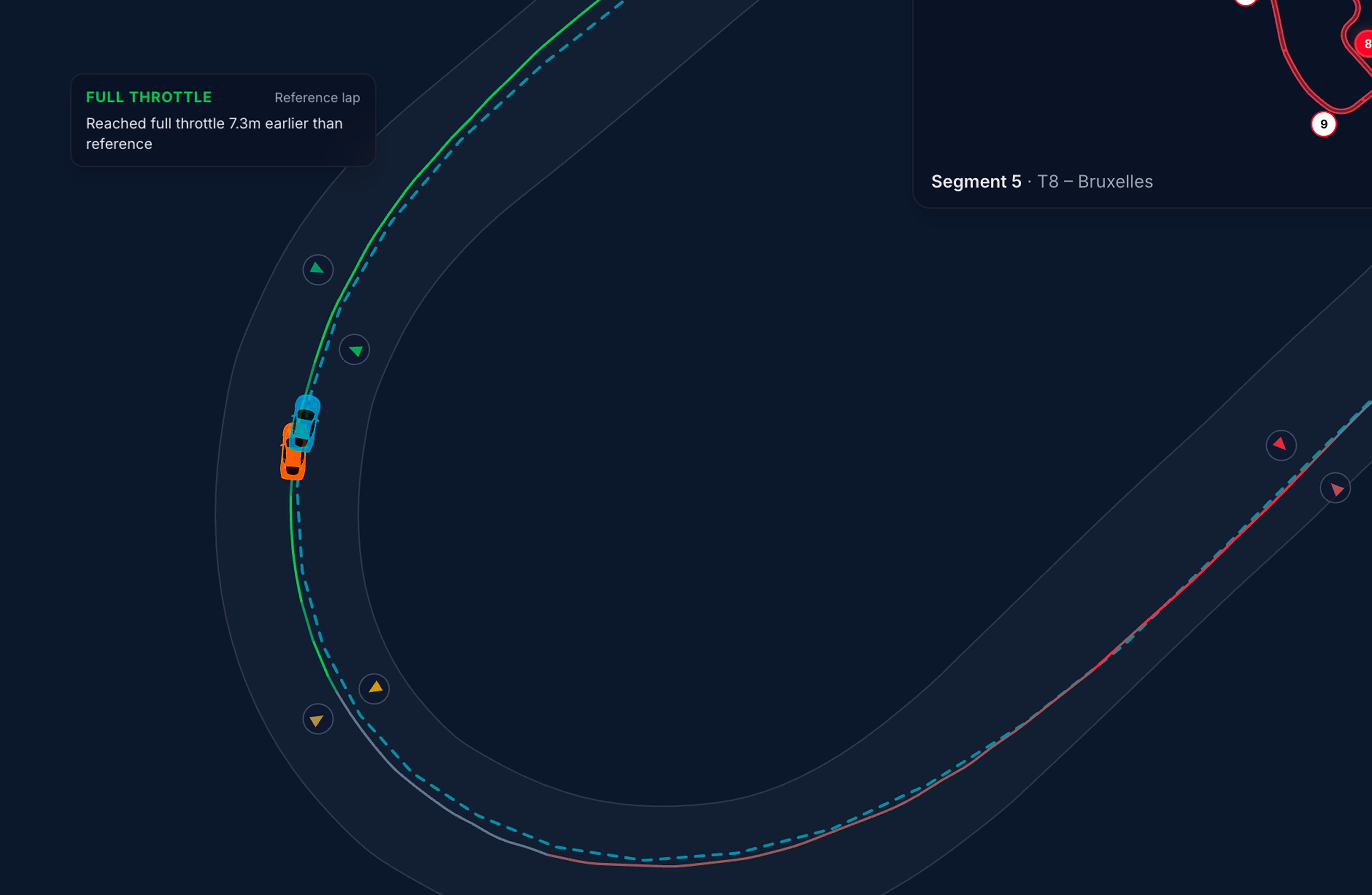
Comparison markers — brake, min speed, and throttle points on the 2D map

Marker types

MyLMU places up to three marker pairs per detected corner — one on your line, one on the reference line:

LabelWhat it marksDriving insight
BRAKINGFirst significant brake application in the cornerEarlier or later brake point vs reference
MIN SPEEDSlowest point (apex) in the cornerCarrying more or less minimum speed
FULL THROTTLEWhere you reach full throttle after the apexEarlier or later throttle application

Markers use slightly different shades for your lap vs reference so you can tell them apart at a glance.

On the map

  • Markers appear on the 2D track map during replay and update as you scrub the timeline
  • Hover a marker for a tooltip — distance or speed comparison vs reference (e.g. how many metres earlier you braked)
  • Markers are 2D only — switch to 2D with M for this view

Requirements

  • Reference lap selected (best, picked lap, external, or community ghost)
  • 2D map view
  • Enough GPS data to detect corners on both laps

Toggle visibility from the gear panel: Comparison markers — see Map display preferences. The toggle is disabled until a reference is loaded.

How to read markers

PatternLikely meaning
Your BRAKING marker before referenceYou braked earlier — may be safer but can cost entry speed
Your BRAKING marker after referenceYou braked later — may carry more speed or miss the apex
Your MIN SPEED inside referenceYou were slower at the apex — check line or brake point
Your FULL THROTTLE after referenceYou picked up throttle later — common time loss on exit

Always cross-check with the Throttle / Brake traces and the live delta in the driver strip.

Suggested workflow

  1. Load a reference ghost from the driver strip
  2. Switch to 2D and ensure Comparison markers is on in display preferences
  3. Scrub to a corner with red segment delta on the mini map
  4. Compare BRAKING and FULL THROTTLE marker positions
  5. Open Traces to see the input trace through that corner

Related

  • 2D map
  • Sector comparison
  • Segment seeker
  • Traces panel
  • Map display preferences

Was this page helpful?

PreviousSegment Mini MapNextOverlays and Technical Modals

On this page

  • Marker types
  • On the map
  • Requirements
  • How to read markers
  • Suggested workflow
  • Related

Was this page helpful?

Documentation

  • Getting started
  • Product overview
  • Sessions
  • MyLMU Telemetry
  • MyLMU Sync Agent
  • MyLMU Coach (AI)
  • Teams
  • Rankings
  • Community
  • Misc

Product

  • Open dashboard
  • Sync Agent
  • Contact
  • Pricing
  • Changelog
  • FAQs
  • Branding

Community

  • Instagram
  • Community forum
  • YouTube
  • X

© 2026 MyLMU

•Privacy Policy•Terms of Service•Cookie Policy